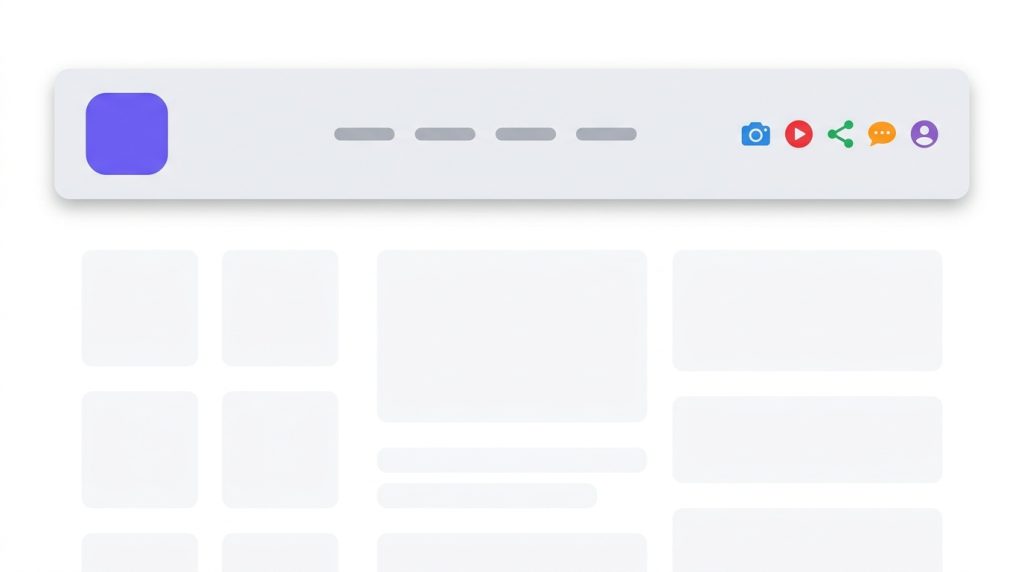
Header icons are the most requested placement and the easiest to get visually wrong. The technical part takes five minutes on any theme. The design decisions — size, colour, count, position — are what determine whether they help or just add noise to your navigation.
Block themes (WordPress 6.0 and later)
If your theme supports full-site editing, the header is a template part you edit visually.
- Go to Appearance → Editor.
- Open Patterns → Template Parts → Header.
- Click the + where you want the icons.
- Insert your plugin’s block, or WordPress’s built-in Social Icons block.
- Save. The change applies everywhere that header template is used.
The core Social Icons block
WordPress ships its own block, and for a simple row it is genuinely fine — no plugin needed. What it does not give you: hover effects beyond a colour change, per-network colour control, click tracking, or the ability to reuse the same icon set in a floating bar and a footer without configuring it twice. If all you need is five links in a header, use it.
Classic themes
Check Appearance → Customize first. A large number of classic themes ship a social links area already positioned and made responsive by the theme author. Using it saves you every CSS problem described later in this article.
If there is no such option, you have two routes.
A header widget area
Many classic themes register a widget area in the header. Drop a social icons widget or a text widget containing a shortcode into it via Appearance → Widgets. This is the safest option because it survives theme updates.
Editing the template
If there is no widget area, edit header.php — in a child theme:
<?php echo do_shortcode('[fuse_icons]'); ?>
Place it inside the header’s flex container, usually right after the navigation markup. Never edit the parent theme directly: the next update overwrites your change, the icons disappear, and there is no obvious cause to trace six months later.
It is two files — a folder with a style.css declaring Template: parent-theme-folder, and a functions.php that enqueues the parent stylesheet. Several plugins generate one for you in a click. Do this before your first template edit, not after.
The menu-item approach
You can add social links as custom menu items under Appearance → Menus, then replace the labels with icons using CSS. Add a custom link, set the URL, and give it a CSS class such as social-instagram under Screen Options → CSS Classes.
The advantages are real: everything lives in one place, and the links inherit your menu’s existing responsive behaviour, including how it collapses into a hamburger.
The catch is accessibility. If you hide the text label visually, keep it available to assistive technology:
.menu-item-social .label{position:absolute;width:1px;height:1px;overflow:hidden;clip-path:inset(50%)}
Do not use display:none — that removes it from screen readers too, and you are back to a link that announces itself as just “link”.
Sizing, colour and count
This is where header icons usually fail, and none of it is about code.
Size
20–24px reads as navigation and sits comfortably beside menu text. 32px starts to draw the eye away from your links. 40px and above reads as a banner element and competes with your logo. Match the optical weight of your menu text rather than matching its pixel height — icons look larger than text at the same size.
Colour
Monochrome almost always beats brand colours in a header. Six saturated brand colours next to your logo fragments the entire bar and pulls attention away from your primary navigation. Use a single neutral that matches your menu text, and let the colour appear on hover if you want the recognition.
Brand colours work well in a floating rail against a plain page background, where there is nothing to compete with. A header is the opposite situation.
Count
Four to six maximum. Put the rest in the footer. A header is a decision-making area, and every extra icon is another decision. If you maintain nine platforms, the header is not the place to prove it.
Position
Right-hand side, after your navigation. Placed before the menu they intercept the first scan, which is the one moment you want spent on your primary links.
Mobile
Header icons are usually the first thing to cut on small screens. You have three sensible options:
- Hide them and rely on a floating bar or footer instead. Simplest, and usually right.
- Move them inside the hamburger menu, below your navigation links. Keeps them reachable without crowding the bar.
- Keep two — your strongest platform and nothing else.
What you must not do is let them wrap onto a second line. A header that becomes two rows on mobile pushes your content down and looks broken.
Header, or floating bar?
Worth being honest about the trade-off, because they serve different goals.
A floating bar generally wins on clicks. It stays visible while people read, so it is present at the moment someone decides they like your content — which is when they follow you.
Header icons win on positioning. They say “we are active on these platforms” during the first impression. That matters for agencies, media brands and anyone whose social presence is part of the pitch rather than an afterthought.
If you want follows, use a floating bar. If you want credibility at a glance, use the header. If you genuinely want both, use the header on desktop and a floating bar on mobile — but do not run both at full strength on the same screen, because they will compete and both will lose.
A quick checklist
- Icons are 20–24px and monochrome.
- Four to six of them, right-aligned, after the navigation.
- Every link opens in a new tab and has an accessible label.
- Every URL includes
https://and has been tested logged out. - Mobile behaviour is deliberate, not accidental.
- Nothing wraps to a second line at any width.
Related guides
- How to Add Social Media Icons to WordPress (2026 Guide)when the icons you just added refuse to appear
- Social Media Icons Not Showing in WordPress? 6 Fixesthe full setup walkthrough, from install to placement
- 7 Best WordPress Social Icon Plugins Compared (2026)how the main plugins in this category actually differ
Add your social icons in about five minutes
Fuse Social Icons is free on WordPress.org — 17 networks, four placements, no code. Pro unlocks all 43 networks, display rules and click analytics.