Fuse Social
  • Features
  • Pricing
  • Blog
  • Demo
  • Docs
  • Support
  • Account
Get Pro — $29.99

Custom Icons

2
  • How to setup custom icons?
  • How to add custom icon as an image?

General Settings

2
  • How to add your email in the sidebar?
  • How to remove social icons from mobile

FAQ

1
  • Why social icons are not working or not taking me to my social media profile?
View Categories
  • Home
  • Docs
  • Custom Icons
  • How to add custom icon as an image?

How to add custom icon as an image?

< 1 min read

You can set up custom icons in fuse very easily, first you need to make sure you have the fuse social floating sidebar pro version, as the free version doesn’t have that feature available.

In this tutorial, we will use the example of What’sApp icon. In order to do that, please navigate to Fuse Social > Custom Icon and upload the icon as an image that you would like to add in the sidebar.
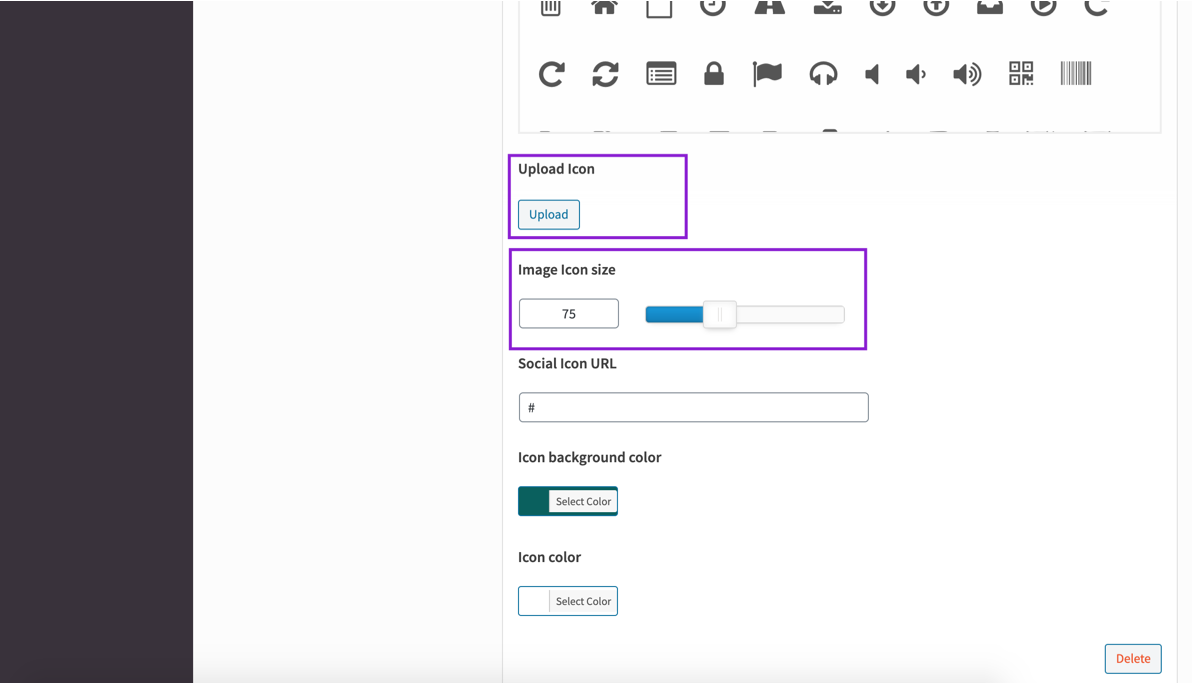
Once the icon is uploaded and finalized the next step is to add the social profile URL in the field which is available in that particular section. The final result will look like this:

Updated on November 8, 2020

What are your Feelings

  • Happy
  • Normal
  • Sad

Share This Article :

  • Facebook
  • X
  • LinkedIn
  • Pinterest
How to setup custom icons?How to setup custom icons?

Powered by BetterDocs

You must be logged in to post a comment.

Fuse Social Icons

Social media icons, share buttons, a widget and a Gutenberg block for WordPress. Free on WordPress.org for ten years.

Product

  • Features
  • Pricing
  • Demo
  • Changelog

Learn

  • Documentation
  • Guides
  • On WordPress.org

Support

  • Contact us
  • Support forum
  • My account

Legal

  • Privacy policy
  • Terms
  • Refund policy

© 2026 Fuse Social Icons · Built for WordPress