Fuse Social
  • Features
  • Pricing
  • Blog
  • Demo
  • Docs
  • Support
  • Account
Get Pro — $29.99

Custom Icons

2
  • How to setup custom icons?
  • How to add custom icon as an image?

General Settings

2
  • How to add your email in the sidebar?
  • How to remove social icons from mobile

FAQ

1
  • Why social icons are not working or not taking me to my social media profile?
View Categories
  • Home
  • Docs
  • General Settings
  • How to add your email in the sidebar?

How to add your email in the sidebar?

< 1 min read

You can add your email address in FUSE social floating sidebar by going top Fuse Social > Social Icons, you just need to add mailto in start of the email address.

As shown in the following screenshot:
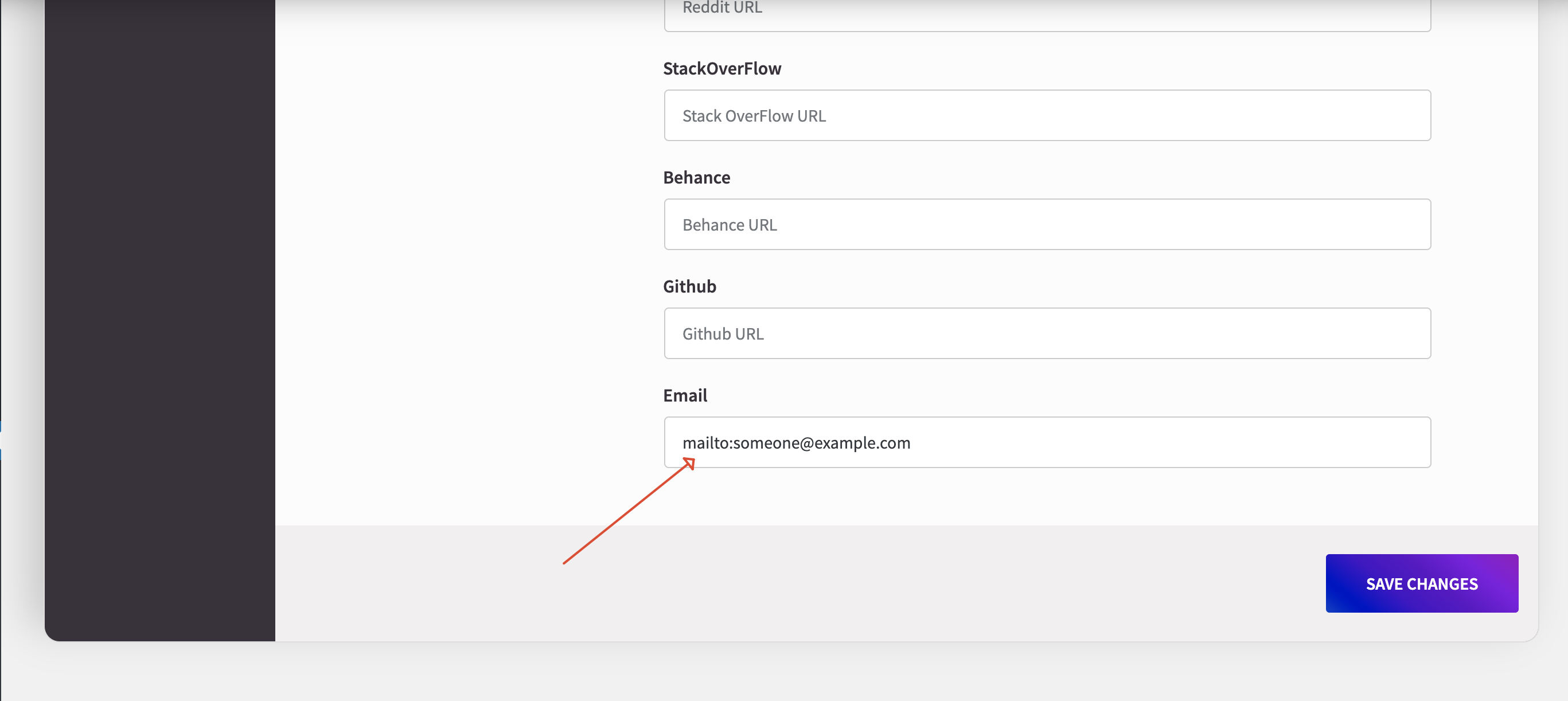
So as shown in the example, you can add the email address as mailto:someone@example.com.

Mailto link is a type of HTML link that activates the default mail client on the computer for sending an e-mail. The web browser requires a default e-mail client software installed on his computer in order to activate the e-mail client.

Updated on January 15, 2021

What are your Feelings

  • Happy
  • Normal
  • Sad

Share This Article :

  • Facebook
  • X
  • LinkedIn
  • Pinterest
How to remove social icons from mobileHow to remove social icons from mobile

Powered by BetterDocs

You must be logged in to post a comment.

Fuse Social Icons

Social media icons, share buttons, a widget and a Gutenberg block for WordPress. Free on WordPress.org for ten years.

Product

  • Features
  • Pricing
  • Demo
  • Changelog

Learn

  • Documentation
  • Guides
  • On WordPress.org

Support

  • Contact us
  • Support forum
  • My account

Legal

  • Privacy policy
  • Terms
  • Refund policy

© 2026 Fuse Social Icons · Built for WordPress